
Digital Accessibility in Education

Focusing on Digital Accessibility

Revised federal accessibility requirements have re-emphasized what many educators already intuitively know—accessibility is essential in all educational environments, including on digital platforms used for learning or communicating with the public.

Developing and maintaining compliant digital accessibility means more than checking a box. This primer offers educators and school leaders a simple starting point for understanding:

  • What digital accessibility looks like and how it behaves in practice
  • Digital accessibility best practices, as defined by the Web Content Accessibility Guidelines (WCAG)
  • Current digital accessibility mandates, and their applicability

Last reviewed October 6, 2026. Compliance dates reflect the Department of Justice’s April 2026 extension.

The Basics

These foundational practices make digital content more accessible, and they are often easier to apply than you might think. Select a topic to learn more.
Side-by-side comparison of color contrast in text. Left: White text on a dark blue background is marked with a green checkmark for 'accessible.' Right: Grey text on a dark blue background marked with a red X for 'inaccessible.'
Readable text relies on strong contrast between text and background colors. High contrast ensures that users with low vision, color blindness, or small screens can comfortably read your content.
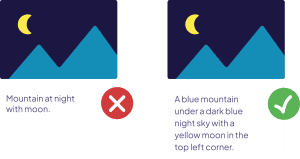
Comparison of inaccessible and accessible alt text: the left example provides minimal, vague descriptors, while the right example includes a detailed, meaningful description of the image.
Alt text provides a short description of an image so screen readers can convey meaning to users who cannot see it. Good alt text focuses on what the image communicates, not just what it looks like.
A graphic illustrating the visual hierarchy of HTML headings: Heading 1 appears bold and largest, Heading 2 is medium weight and smaller, and Heading 3 is the lightest and smallest.
Proper use of headings (H1, H2, H3) organizes content in a way that screen readers can interpret, whether in webpages or PDFs. Clear structure helps all users navigate more quickly and understand how information is grouped across digital documents.
A graphic showing two examples of hyperlink text. The first is labeled 'Click here' and marked with a red X to indicate a vague, inaccessible link. The second is labeled 'Fill out our survey' and marked with a green checkmark to indicate a meaningful, descriptive link.

Links should describe where they lead. Instead of “Click here,” use descriptive text like “Download the field trip form.” This supports both accessibility and comprehension.
Side-by-side comparison of video accessibility. Left: A video without captions marked with a red X for 'inaccessible.' Right: A video with captions marked with a green checkmark for 'accessible.'

Videos and audio recordings should include captions and written transcripts so users who are deaf or hard of hearing, or anyone in a quiet or loud environment, can access the content.

Common Questions

WCAG (Web Content Accessibility Guidelines) are standards developed by the World Wide Web Consortium (W3C) that help make digital content perceivable, navigable, interactive, and able to be understood by all users.

These standards define how to make web content accessible to people with disabilities, including visual, auditory, physical, speech, cognitive, language, learning, and neurological disabilities; in practice, these standards also improve usability for all people.

Implementation of these standards is split into three compliance levels: A, AA, and AAA. Under a revised federal mandate, school districts are required to meet level AA compliance, at the minimum.

Version 2.1 is the one named in the federal rule and in Illinois law. WCAG 2.2, published in 2023, keeps the 2.1 requirements and adds a few more, such as buttons and links large enough to tap, keyboard focus that isn’t hidden behind sticky headers, and logins that let people paste a password or use a password manager instead of solving a puzzle. Content that meets WCAG 2.2 AA also meets 2.1 AA, so new websites and new purchases can aim for 2.2.

Read the full WCAG 2.1 standard · See what’s new in WCAG 2.2

Often, successful WCAG implementation is contextual. However, there are several foundational practices that schools can utilize to build out a robust, compliant web content ecosystem.

Common examples include:

  • High contrast between text and background colors (in both body text and titles)
  • Descriptive alt text for images
  • Proper use of headings
  • Hyperlink text that describes where it leads
  • Providing captions and written transcripts for all video content

Explore the Basics section for more details on these foundational practices →


K–12 school districts must make their public-facing web content and mobile apps meet WCAG 2.1 Level AA.

This mandate comes from an updated US Department of Justice ADA Title II rule, which adopts WCAG 2.1 AA as the accessibility standard for state and local government services (including schools). The purpose is to ensure that everyone who interacts with public services and institutions (including students, families, and the general public) has equitable access to important digital information.

The compliance date depends on the total population your district serves:

  • Districts serving 50,000 or more residents must comply by April 26, 2027.
  • Districts serving fewer than 50,000 residents must comply by April 26, 2028.

These dates come from an interim final rule the Department of Justice published on April 20, 2026, which moved each deadline back one year (from April 24, 2026 and April 26, 2027).

For an independent school district, the population is the Census Bureau’s Small Area Income and Poverty Estimates (SAIPE) figure for the district. For a district that is part of a city or county government, it is that city’s or county’s population.

The extension changes the dates, not the obligation. The ADA already requires districts to give people with disabilities equal access to their services, so a person who can’t use a page or document today can still raise a complaint.

This mandate applies to all public-facing digital content and web platforms, including (but not limited to): websites, documents, media, and online communications. Outside of your district website, assets including PDFs, social media, and educational tools also fall under this umbrella.

Districts are additionally responsible for ensuring that third party tools, apps, and vendors that host or communicate covered digital content meet these requirements.

The rule covers existing content as well as new content, with five exceptions (see “Do we have to fix every old document and social media post?” below). Content that is still in use must meet WCAG 2.1 AA by your compliance date.

Not necessarily. The rule has five exceptions. Each one has conditions, and none of them covers content people still need in order to use a district service.

  1. Archived web content. Content created before your compliance date, kept only for reference, research, or recordkeeping, stored in an area clearly labeled as archived, and not changed since it was archived. It must meet all four conditions.
  2. Older documents. PDFs, word processing files, presentations, and spreadsheets posted before your compliance date, unless people still use them to apply for, access, or take part in your programs (an enrollment form, a current handbook, a registration packet).
  3. Content posted by third parties. For example, public comments on a district page. This does not cover content a vendor or contractor posts on your behalf.
  4. Individual, password-protected documents. Documents about a specific person, property, or account, such as a report card or a bill, that are password-protected or otherwise secured.
  5. Older social media posts. Posts your district made before your compliance date.

There is no general exception for content behind a login, such as course pages in a learning management system. And even when content is excepted, you still need to provide it in an accessible format when someone with a disability asks for it.

A practical approach: delete what’s outdated, move true archives to a clearly labeled archive page, and fix or replace anything people still use.

Read the Department of Justice’s summary of the exceptions

Yes, for online curriculum. Since August 1, 2022, the Illinois School Code (105 ILCS 5/10-20.75, added by Public Act 102-0238, with a matching section for Chicago Public Schools) has required every school district to make sure the third-party online curriculum it offers to enrolled students or the public meets WCAG 2.1 Level AA, or a later version. Build that requirement into curriculum purchases and vendor contracts.

The Illinois Information Technology Accessibility Act (IITAA) applies to state agencies and public universities, not school districts. Its IITAA 2.1 Standards, which are based on WCAG 2.1 AA, and the Department of Innovation and Technology’s testing guides are still useful Illinois references.

For free training and support, contact the Illinois Assistive Technology Program.

Primarily, noncompliance with this mandate exposes school districts to additional legal liability under the Americans with Disabilities Act (ADA). Guidance from your district’s legal counsel may be necessary to fully understand your district’s potential liability.

Beyond mandatory compliance, adherence to the principles and practices outlined in these legal requirements can significantly reduce barriers to accessing your district’s digital content. Continued adherence also promotes inclusivity within your educational community, ensuring people with disabilities – including students, parents, and community members – are provided equitable opportunities to engage with your district in digital environments.

Additionally, these digital accessibility best practices supplement efforts toward universal design. This curb-cut effect positively impacts access for all people, which orients your district’s digital content strategy toward proactive (rather than reactive) accessibility.

Compliance Roadmap

A step-by-step plan for moving your district from awareness to WCAG 2.1 AA compliance, based on the Department of Justice’s recommended first steps. Start at step 1 and work in order. Steps 6 and 7 become an ongoing cycle as you work through your content.

Get organized

Steps 1–3

Find out which compliance date applies to your district and make sure leadership knows it.

  • Look up the population your district serves (see “What is the digital content accessibility mandate?” above) to confirm whether your date is April 26, 2027 or April 26, 2028.
  • Note that Illinois already requires your third-party online curriculum to meet WCAG 2.1 AA.
  • Brief your superintendent and board on the requirement, the deadline, and the steps below.

Ready for the next step when: your deadline is on the leadership calendar and the board has been briefed.

Compliance touches every department, so give one person clear ownership and a team to help.

  • Name an accessibility lead. This is often the district’s ADA/504 coordinator, technology director, or communications director.
  • Build a team that includes technology, communications or the webmaster, curriculum, special education, and purchasing.
  • Decide who can publish to the website and social media, and who reviews content before it goes live.

Ready for the next step when: the lead and team are named and everyone knows their role.

Most accessibility problems are created one document or post at a time. Training everyone who publishes stops the backlog from growing while you fix what’s already there.

  • Give everyone who posts content (teachers, office staff, coaches, communications) a short introduction to the basics: contrast, alt text, headings, link text, and captions.
  • Give deeper, role-specific training to your webmaster, anyone who creates PDFs, and staff who buy software.
  • Add accessibility to onboarding for new staff.

Ready for the next step when: everyone who publishes has had basic training.

Find and fix

Steps 4–7

You can’t fix what you haven’t found. List every place your district publishes content, and who is responsible for it.

  • District and school websites, plus any sub-sites for athletics, PTOs, or departments.
  • Documents: PDFs, Word files, slide decks, and spreadsheets posted online.
  • Videos, podcasts, and livestreams.
  • Social media accounts.
  • Third-party tools families use: registration, payments, lunch accounts, calendars, forms, mobile apps, and your learning management system.

For each item, record its owner, its audience, and roughly how often it’s used.

Ready for the next step when: you have one list of everything your district publishes, with an owner for each item.

Use the five exceptions to decide what has to meet WCAG 2.1 AA. This step often shrinks the work considerably.

  • Delete content that is outdated and no longer needed.
  • Move content you need to keep for reference into a clearly labeled archive area, and stop changing it.
  • Flag everything people still use to enroll, register, pay, apply, or stay informed. That content must be accessible.

Ready for the next step when: every item on your list is marked as delete, archive, or fix.

Find out what needs fixing, then decide what to fix first.

  • Run an automated checker such as WAVE on your key pages. Automated tools catch only some problems, so also do quick manual checks: use the page with only a keyboard, zoom to 200%, and check that videos have accurate captions. W3C’s Easy Checks walks you through them.
  • Use our Web Accessibility Checklist for Schools to record results.
  • Fix first: content people need to complete a task (enrollment, registration, payments), your most-visited pages, page templates (fixing one fixes every page that uses it), and anything someone has reported as a barrier.

Ready for the next step when: you have a prioritized list of fixes with an owner and a target date for each.

Work through your priority list, starting with the fixes that help the most people.

  • Ask your website provider to fix template-level problems such as menus, color contrast, and focus indicators.
  • Fix or replace key documents. Where possible, turn PDFs into web pages, which are easier to keep accessible.
  • Add captions to videos, alt text to images, and descriptive text to links.
  • See Anatomy of an Accessible Website for what an accessible page looks like.

Ready for the next step when: your highest-priority content passes your checks. Keep working through the rest of the list on a regular schedule.

Keep it accessible

Steps 8–10

Your district is responsible for the accessibility of the tools and services vendors provide on its behalf.

  • Ask current vendors for an Accessibility Conformance Report (often called a VPAT) and a plan to fix known issues. Our Vendor Accessibility Compliance Email Template makes the request easy.
  • Add WCAG 2.1 AA requirements to new contracts and renewals, including online curriculum, which Illinois law already covers.
  • Make accessibility part of how you evaluate new purchases.

Ready for the next step when: your key vendors have responded and new contracts include accessibility requirements.

A policy sets expectations for staff. A public statement tells families how to get help.

  • Adopt a board policy or administrative procedure that names your standard (WCAG 2.1 AA), who is responsible, and how new content is reviewed. The sample policy template under “Policies & Guides” below is a starting point.
  • Publish an accessibility statement on your website that explains how to report a barrier or request an accessible format, and how quickly you’ll respond. W3C’s accessibility statement generator can help.

Ready for the next step when: the policy is adopted and the statement is linked from every page, usually in the footer.

Accessibility is ongoing. Content changes every day, so build regular checks into your routine.

  • Scan your key pages regularly (monthly works for many districts) and do a fuller review once a year.
  • Track and respond to every barrier someone reports.
  • Train new staff and refresh training each year.
  • Review accessibility for every new website, tool, or purchase.

Need help with any step? Contact LTC.

Tools and Guides for Diving Deeper

Once you’re ready to take the next step, these tools, guides, and training opportunities can support your ongoing accessibility journey.

Each offers insights into infusing digital accessibility best practices into common school district activities, such as updating a website, preparing documents, or building staff awareness.

Disclaimer: This content in this primer is for educational purposes only and shall not be considered legal advice or guidance. It is not a comprehensive list of all accessibility requirements. LTC does not serve as a relevant regulator or auditor and shall not be held legally responsible for how this information is used.

Related Resources

See all Resources →