


Implementing Digital Accessibility in Education
A Primer for K-12 Schools
Focusing on Digital Accessibility
Revised federal accessibility requirements have re-emphasized what many educators already intuitively know—accessibility is essential in all educational environments, including on digital platforms used for learning or communicating with the public.
Developing and maintaining compliant digital accessibility means more than checking a box. This primer offers educators and school leaders a simple starting point for understanding:
- What digital accessibility looks like and how it behaves in practice
- Digital accessibility best practices, as defined by the Web Content Accessibility Guidelines (WCAG)
- Current digital accessibility mandates, and their applicability
The Basics

Readable text relies on strong contrast between text and background colors. High contrast ensures that users with low vision, color blindness, or small screens can comfortably read your content.

Alt text provides a short description of an image so screen readers can convey meaning to users who cannot see it. Good alt text focuses on what the image communicates, not just what it looks like.
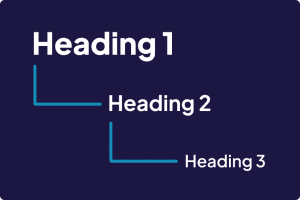
Proper use of headings (H1, H2, H3) organizes content in a way that screen readers can interpret, whether in webpages or PDFs. Clear structure helps all users navigate more quickly and understand how information is grouped across digital documents.

Links should describe where they lead. Instead of “Click here,” use descriptive text like “Download the field trip form.” This supports both accessibility and comprehension.

Videos and audio recordings should include captions and written transcripts so users who are deaf or hard of hearing, or anyone in a quiet or loud environment, can access the content.
Readable text relies on strong contrast between text and background colors. High contrast ensures that users with low vision, color blindness, or small screens can comfortably read your content.
Alt text provides a short description of an image so screen readers can convey meaning to users who cannot see it. Good alt text focuses on what the image communicates, not just what it looks like.
Proper use of headings (H1, H2, H3) organizes content in a way that screen readers can interpret, whether in webpages or PDFs. Clear structure helps all users navigate more quickly and understand how information is grouped across digital documents.
Links should describe where they lead. Instead of “Click here,” use descriptive text like “Download the field trip form.” This supports both accessibility and comprehension.
Videos and audio recordings should include captions and written transcripts so users who are deaf or hard of hearing, or anyone in a quiet or loud environment, can access the content.
Common Questions
WCAG (Web Content Accessibility Guidelines) are standards developed by the World Wide Web Consortium (W3C) that help make digital content perceivable, navigable, interactive, and able to be understood by all users.
These standards define how to make web content accessible to people with disabilities, including visual, auditory, physical, speech, cognitive, language, learning, and neurological disabilities; in practice, these standards also improve usability for all people.
Implementation of these standards is split into three compliance levels: A, AA, and AAA. Under a revised federal mandate, school districts are required to meet level AA compliance, at the minimum.
Although version 2.2 is now available, version 2.1 is referenced in all relevant mandates at this time.
Often, successful WCAG implementation is contextual. However, there are several foundational practices that schools can utilize to build out a robust, compliant web content ecosystem.
Common examples include:
- High contrast between text and background colors (in both body text and titles)
- Descriptive alt text for images
- Proper use of headings
- Hyperlink text that describes where it leads
- Providing captions and written transcripts for all video content
Explore the Basics section for more details on these foundational practices →
Going forward, K-12 school districts are required to ensure their public-facing digital content meets WCAG AA 2.1 accessibility requirements.
This mandate come from a updated US Department of Justice’s ADA Title II rule, which adopts WCAG 2.1 AA as the accessibility standard for public schools. The purpose is to ensure that everyone who interacts with public services and institutions (including schools) has equitable access to important digital information.
Effective rollout for this mandate is staggered based on the total population of the geographic area that your district serves.
- Districts serving ≥ 50,000 population residents must comply by April 24, 2026.
- Districts serving < 50,000 population residents must comply by April 26, 2027.
This mandate applies to all public-facing digital content and web platforms, including (but not limited to): websites, documents, media, and online communications. Outside of your district website, assets including PDFs, social media, and educational tools also fall under this umbrella.
Districts are additionally responsible for ensuring that third party tools, apps, and vendors that host or communicate covered digital content meet these requirements.
The mandate is retroactive, with a few exceptions. Resources created before the effective date must be updated if they remain public-facing and are still in use. Content that is no longer in use must be clearly labeled as archived in order to qualify for an exception.
Primarily, noncompliance with this mandate exposes school districts to additional legal liability under the Americans with Disabilities Act (ADA). Guidance from your district’s legal counsel may be necessary to fully understand your district’s potential liability.
Beyond mandatory compliance, adherence to the principles and practices outlined in these legal requirements can significantly reduce barriers to accessing your district’s digital content. Continued adherence also promotes inclusivity within your educational community, ensuring people with disabilities – including students, parents, and community members – are provided equitable opportunities to engage with your district in digital environments.
Additionally, these digital accessibility best practices supplement efforts toward universal design. This curb-cut effect positively impacts access for all people, which orients your district’s digital content strategy toward proactive (rather than reactive) accessibility.
Practical Resources for Getting Started
These LTC-developed resources can help your district explore digital accessibility at a comfortable pace. Each resources offer broad guidance to help K-12 teams build familiarity with best practices before diving deeper.


Tools and Guides for Diving Deeper
Each offers insights into infusing digital accessibility best practices into common school district activities, such as updating a website, preparing documents, or building staff awareness.
- Americans with Disabilities Act Title II Regulations: Federal regulations that outline nondiscrimination requirements for public entities, including K12 schools.
- WCAG 2.0 Quick Reference: Interactive reference to WCAG 2.0 success criteria and techniques.
- WebAIM’s WCAG 2.0 Checklist: Practical recommendations for implementing WCAG 2.0 principles in web content.
- ADA’s Fact Sheet: A summary of the updated rule from the ADA.
- School Webmaster’s Sample Accessibility Policy Template: Starting point to establishing a website accessibility policy.
- Apptegy’s 10 Tips for K-12 ADA Website Compliance: Guidance created for common accessibility issues in school websites.
- Denver Public School’s Website Accessibility Guide: Example of how one district organizes accessibility expectations.
- Vispero’s Color Contrast Analyzer: Tool for checking color contrast for accessibility.
- Web Accessibility Evaluation Tool List: Provides additional audit tools to determine if a website meets accessibility guidelines.
- DoIT Screen Reader Guide: Resource explaining how screen readers work and how to test with them.
- WAVE: Browser-based web accessibility evaluation tool developed by WebAIM.
- Illinois Assistive Technology Program: Offers free training and services for Information Communication Technology (ICT) Accessibility.
- CAST Accessibility Services: Offers a suite of accessibility services designed for educational institutions.
- Section508 Accessibility Training: Provides online video training and tools to help make your digital content accessible.
- WCAG in Plain English: Aaardvark’s beginner-friendly guide to digital accessibility.
- Tips for Accessibility with Google Tools: Guidance for making content accessible in Google Workspace.
- Tips for Accessibility with Microsoft Tools: Guidance for making content accessible in Microsoft Workspace.
- Adobe Acrobat PDF Accessibility Guide: Instructions for creating and checking PDF documents for accessibility.
Disclaimer: This content in this primer is for educational purposes only and shall not be considered legal advice or guidance. It is not a comprehensive list of all accessibility requirements. LTC does not serve as a relevant regulator or auditor and shall not be held legally responsible for how this information is used.